Being a Verizon Fios customer for the past four years, I must say, the service itself has been very reliable for the most part compared to Comcast.
Couple of weeks prior to the end of my two-year service agreement, I thought of contacting Verizon’s customer service to inquire about offers for existing customers. I must say the experience was unpleasant.
Even though it says on my bill that my existing offer for the Triple Play package has been extended for an additional year, I was told by the customer service representative that my existing package price of $115 plus equipments will go up, literally doubled even with a new two-year agreement.
So I was debating whether I should say with Verizon or sign up with Comcast and take advantage of their offers for new customers. At the same time I wasn’t ready to give up Fios Internet service. I decided to call Verizon again and just sign up for the Internet service ($89 for 75MB) by itself in which I ended up signing up for new two-year contract, costing me almost the same price for the Triple Play package. I know it was a mistake!
A week later, I contacted Verizon customer service again inquiring to sign up for Triple Play package in which the price was over $200 with only basic TV in which I ended up not getting.
Few days later, while checking Twitter feed, I came across Verizon Fios promotion posted by Verizon Fios social media team in which I replied to, complaining about the way Verizon treats loyal customers. I was told to send them Direct Message (DM) via Twitter in which I was asked to verify my account which I did. Unfortunately, they were no help & pretty much directed me to contact customer service again. You can say, it’s a nice way of shutting up a customer before exposing the downside of their service.
I waited about a month till mid Verizon January and contacted Verizon customer service again. Luckily, I spoke with a knowledgeable customer service representative who told me what the two previous customer service reps told me wasn’t correct. She canceled my two-year agreement for Internet only service and restored my Triple Play package for a year without a contract.
My advice to existing Verizon customers NOT to contact customer service during the month of December because many of the experienced customer service reps are on leave and the new reps have very little knowledge about offers and loyalty programs available.
Unfortunately, I returned a digital TV box that I was only paying $6.99/month in which is discontinued. Meaning I had to get another digital box at a fee of $11.99/month.

When I first moved back to Michigan, we started hanging out at a hookah lounge called Lava Lounge in Dearborn Heights. It’s not my first time being there, have been to it few times before but never liked it for various reasons.

Many people kept saying to me in DC, moving back to Michigan will save you a lot of money especially on hookah night out with friends. Guess what! That wasn’t true. In fact, an average hookah costs $20 and goes up to $30 plus depending on the flavor mix and tobacco brand.
Why should you avoid Lava Lounge?
Having a good customer service is a major factor to insure customers are satisfied with the service so they would return. As for Lava Lounge, the customer service is really bad. Another thing I have noticed, many hookah lounges in Michigan now charge an average of $2 extra for Coco Nara coal which is very ridiculous. It doesn’t stop there, even with the additional charge for the Coco Nara coal, it takes forever to get replacement coals.
Even though many hookah lounges have a designated individual to frequently replace coals, often times, the wait time to get a new coal could take over 30 minutes from my personal experience with Lava Lounge.
Last time I went to this location, we asked if we could sit on a booth in which we were told all booths are reserved. We ended up sitting on one of the tables. As usual, we hung out late till around midnight and over half of the booths were empty even though we were told they’re reserved.
Since the last unpleasant experience, I have decided to never go to this hookah lounge again. Do yourself a favor and go elsewhere where you feel welcomed. If customer service is a major factor for you, try Lava Lounge Too or Blue Moon.
location address:
26507 Ford Rd, Dearborn Heights, MI 48127
Having Lenovo ThinkPad laptop for about two years, I thought maybe it is time to purchase a new laptop. Perhaps a laptop with more processing power and a must have Solid State Drive (SSD). I did not really care much about the touchscreen feature even though it is a plus to have.
However, over the past two years, not much have changed with respect to hardware and even the software. Computer Processors (Intel, AMD, etc.) did not advance much as far as processor clock speed, conventional hard drives did not change much either with exception to higher capacity.
The primary focus of computing systems manufactures seem to to be revolving around touchscreen displays, look & feel of products and partially or fully offering built-in SSD.
On the other hand, Microsoft realized that Windows 8 operating system was a failure and pretty much is just rolling back to Windows 7. In reality, Windows 10 is simply Windows 7 & Windows 8 combined. I remember when I purchased my Lenovo laptop, there were only few laptops available that are running Windows 7. Currently, I have Microsoft Windows 7 running on my laptop. Despite the fact that I keep getting annoying popup message with an offer to upgrade to Windows 10 for FREE but I have no plan of upgrading my existing OS.
On Cyber Monday, I purchased Microsoft Surface Pro 4 from Costco for $749 after $250 in discounts in which I ended up returning it. At the same time, I ordered HP ENVY – 15t Touch Laptop from HP for $629 after $330 in discounts in which I also just sent back.
You’re probably wondering why did I send both of them back?
Wonder no longer! See the comparison chart below:
| Comparison | Lenovo ThinkPad | Microsoft Surface Pro 4 | HP ENVY |
| Processor | Intel Core i5-3230M processor (2 cores, 2.60GHz, 3MB cache) | Intel Core i5-6300U Processor 2.4GHz | Intel® Core™ i7-7500U (2.7 GHz, up to 3.5 GHz, 4 MB) |
| Storage | 500GB SATA 3.0 (replaced with 500GB SSD) | 128GB SSD | 256GB PCIe® NVMe™ M.2 SSD |
| Memory | 4GB RAM | 4GB RAM | 8GB RAM |
| Display | 14” | 12.3” touch | 15.6” touch |
| CD/DVD drive | Yes | No | No |
| Operating System | Windows 7 | Windows 10 Pro | Windows 10 Home |
After comparing both laptops to my existing Lenovo ThinkPad, I realized it is not really worth purchasing new laptop but upgrading the standard hard disk with SSD.
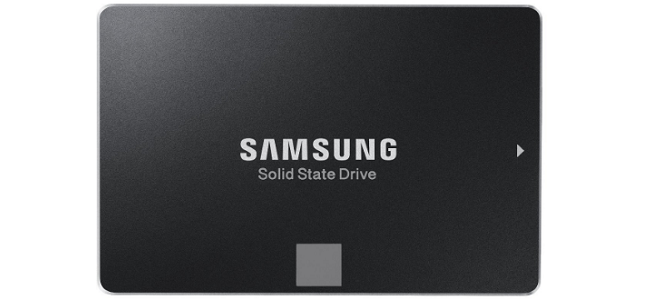
I did some research about available internal SSD in the market today and finally decided to get the Samsung SSD 850 EVO 2.5″ SATA III 500GB mainly because of the many positive reviews about the product.
The product includes a CD with Samsung Data Migration and Magician software which makes the installation process very easy.
However, the SSD 850 EVO does not include data transfer cable nor power cable needed to migrate data. Therefore, unless you have SATA III 2.5″ Hard Drive Adapter, you will have to purchase it to complete the migration process before installing anything. You’ll need a transfer cable for data transfer and a power cable to power the SSD. The SATA 2.5” Kit or something similiar to it is what you’ll need to clone your existing hard drive.
Data Migration Step:
- Turn your laptop on and make sure it is connected to the power outlet.
- Connect the SSD EVO 850 to USB port on your laptop, using the SATA Kit. Please note, the SSD EVO 850 must be receiving power for it to work. Connecting data cable only won’t cut it.
- Once connected, your laptop should identify a new USB device connected to it.
- Install the migration software using the CD provided with the product (if you do not have CD-ROM drive on your laptop, click here to download the migration software of Samsung website).
- Run the migration software which will clone your entire system. The process will take hours depending on how much data you have on your old hard drive.
In my case, the migration process took little over three hours, to clone about 300 GB of data, so be patient. Once the migration process completes, power down your laptop.
Installation Step:
- Turn off your laptop and unplug any power source connected to the laptop.
- Take out the laptop battery.
- Use Flip screwdriver to take out the back cover screws.
- Locate the old SATA 2.5” hard drive. It should be secured using four screws or so.
- Take out the four screws and gently pull out the old hard drive.
- To use the old hard drive housing for the SSD, you will need to take out its side screws. There should be four screws.
- Use the old SATA 2.5” housing to install the SSD inside it.
- Install the SSD by gently sliding it into the SATA adaptor on your laptop.
- Secure the SSD by installing the four screws back.
- After making sure everything is on place, put the back cover back.
Put the battery back on the laptop and start it. The laptop should start exactly the same way it always does with exception to performance.
You will notice improvements in speed and performance the minute your start your laptop. Most of the performance will be noticed when launching system intensive applications like Photoshop and the like.
Most importantly, you do not have to worry about a hard drive crash that could cost you loss of all of your data. It is very easy to recover data of a SSD than conventional hard disks in the event of system failure.
For over two years, I owned Netgear NeoTV Streaming Player (NTV200) which I really enjoyed using, mostly to stream NetFlix movies and TV shows. All the sudden, it stopped working completely without any warning signs.
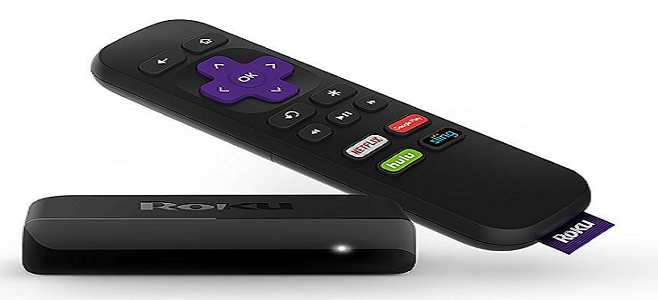
I thought about purchasing Google Chromecast as a replacement. However, that was not an option since the Chromecast does not come with a remote control which is very convenient and an important factor to me. So, I decided to buy another Netgear streaming player. After searching on eBay, I came across a newer model of the NeoTV streaming player which seemed to be an ideal replacement. First of all, it includes a remote control and secondly it is a newer model.
Why buying Roku?
So I placed my order for Netgear NeoTV Streaming Player (NTV300) from eBay. The streaming player arrived on time and I was excited to set it up and continue watching my favorite NetFlix movies and TV shows. Unfortunately, the new model of NeoTV (NTV300) would not connect to Netgear server. After multiple failed attempts, I thought maybe the WiFi signal was not strong enough so I connected the streaming player directly to the router.
After countless attempts to connect to the Netgear server, I gave up! So, I searched online for tips on how to set it up. Sadly, there were many negative comments from NTV300 owners, stating that Netgear discontinued support for the streaming player. Since NTV300 requires connecting with Netgear server to check for software updates prior to initial use, the streaming player is basically useless. The funny thing is that it is still available for sale on Amazon and other websites but do NOT buy it!
Luckily, I contacted the seller, whippetinthefastlane, whom I purchased NTV300 from to request a return and explained the reason. The seller right away issued me a full refund of the item without even the need to send it back, in which I greatly appreciate. No more Netgear products for me!
![[Photo credit]: www.roku.com](https://i0.wp.com/hrz.oyb.mybluehost.me/wp-content/uploads/2016/11/Roku-express-285x130.png?resize=285%2C130&ssl=1)
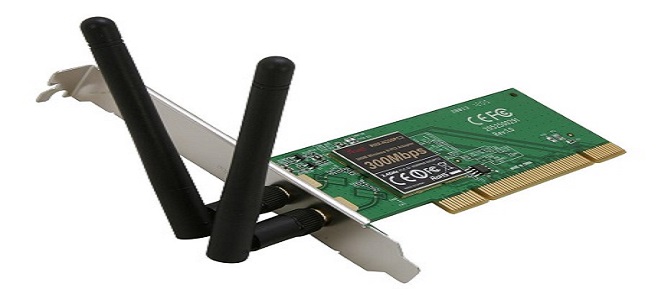

Standard computers have two or more PCI slots on the motherboard that can be used to add/upgrade the computer with a number of hardware cards (video cards, network card, etc.).
According to the specification of the Rosewill wireless-N 802.11b/g/n PCI adapter, the wireless-N adapter supports up to 300 Mbps, which makes it great for gaming, video streaming and Internet calls. You do not need to be computer tech to install the card, all you need is a screwdriver to open the computer box, place the PCI adapter in one of the empty slots and close the computer box.
However, before opening the computer, make sure you first turn it off and unplug the power. Once the adapter has been installed, power up your computer and use the installation CD that comes with the adapter to install the software drivers. In minutes, your newly installed wireless adapter will be up and running.